I have been having a hard time finding good suggestions on how to access and edit hard drives that are in NTFS format on my Mac. The main reason I wanted to be able to do this was so that I could edit my Windows 7 drive when booted in my Mac partition. I have been looking for something for quite awhile with now avail, but then yesterday I finally came across something that answered my prayers.
What I'm talking about is some little code that was made by a Google engineer that made some changes to the driver for NTFS file format in your Mac OS X. All that you really need to do is install it and restart your computer and just like that you are able to edit NTFS drives in OS X. It is called NTFS 3G.
Here is the link:
http://downloads.sourceforge.net/catacombae/NTFS-3G_2009.4.4-catacombae.dmg?use_mirror=
It is really simple to install and after a quick restart it is fully functional. I hope this helps all of those out there looking for this solution.
Feb 20, 2011


Is it impossible to download files from 1-Click Hosters on Mac OSX?
No, I think the best download manager is Tucan Manager. you can use your premium accounts on 1-Click Hosters.
Tucan Manager is a free file sharing application designed for 1-Click Hosters. Fast and lightweight, Tucan is fully open-source and compatible with Windows, GNU/Linux, and MacOSX.
With Tucan's modular support for the principal Hosters, captcha resolution, interchangeable links, premium user accounts, and many other great features, you'll learn why users around the world are making the switch to free, open 1-Click Hosted file sharing.
It is FREE ! I checks the link's availability...
GET I --> http://www.tucaneando.com/
Tucan Manager is a free file sharing application designed for 1-Click Hosters. Fast and lightweight, Tucan is fully open-source and compatible with Windows, GNU/Linux, and MacOSX.
With Tucan's modular support for the principal Hosters, captcha resolution, interchangeable links, premium user accounts, and many other great features, you'll learn why users around the world are making the switch to free, open 1-Click Hosted file sharing.
It is FREE ! I checks the link's availability...
GET I --> http://www.tucaneando.com/
Feb 17, 2011
Disabling Dashboard
Open Terminal, and then type this command, followed by the Return key:
defaults write com.apple.dashboard mcx-disabled -boolean YES
This tells the system that you no longer wish to have Dashboard available. However, the Dashboard task is actually “owned” by the Dock, so to make your changes take effect, you need to restart the Dock. The easiest way to do that is to type this command into the Terminal (and press Return when done):
killall Dock
After the Dock restarts, hit F12 and you’ll see…nothing at all. If you run Activity Monitor, you also won’t find any Dashboard widgets in the list of tasks, even if you had several open when you ran the above command. Dashboard has been eliminated from your system, and won’t return until you tell it to do so. You can do just that by opening Terminal again, and typing this command:
defaults write com.apple.dashboard mcx-disabled -boolean NO
Once again, you’ll have to use the
killall Dock
command to make the changes take effect. Once you do, though, you’ll find that Dashboard is back as usual—and any widgets you had opened on the Dashboard will still be open.
defaults write com.apple.dashboard mcx-disabled -boolean YES
This tells the system that you no longer wish to have Dashboard available. However, the Dashboard task is actually “owned” by the Dock, so to make your changes take effect, you need to restart the Dock. The easiest way to do that is to type this command into the Terminal (and press Return when done):
killall Dock
After the Dock restarts, hit F12 and you’ll see…nothing at all. If you run Activity Monitor, you also won’t find any Dashboard widgets in the list of tasks, even if you had several open when you ran the above command. Dashboard has been eliminated from your system, and won’t return until you tell it to do so. You can do just that by opening Terminal again, and typing this command:
defaults write com.apple.dashboard mcx-disabled -boolean NO
Once again, you’ll have to use the
killall Dock
command to make the changes take effect. Once you do, though, you’ll find that Dashboard is back as usual—and any widgets you had opened on the Dashboard will still be open.
Jan 24, 2011


Oct 27, 2010
How to manage your iPod using Rhythmbox in Ubuntu
1- By default, when you connect your iPod to your computer Rhythmbox will launch. If this is the first time you’ve used Rhythmbox you’ll be taken through a quick setup. If it’s not, you can skip down to step 7.
Click the Forward button to begin the setup.

2- Choose the folder you store your music files in by clicking the Browse… button.

3- Navigate to your music folder and click Open.

4- Back at the setup window make sure your music folder has been selected and then click the Forward button.

5- Now click Apply to finish setting up Rhythmbox.

6- Rhythmbox will open and your music library will be displayed.

7- To view the contents of your iPod, select it from the list in the left column.

8- From here you can remove tracks from your iPod by right-clicking (ctrl-click for single button mouse folks) a song (or group of songs) and selecting Move to Trash. To add tracks to your iPod, go back to your music library, select the songs and drag them to the iPod listed in the right column.

9- When you’re done updating your iPod and want to disconnect it, close down Rhythmbox, right-click the iPod icon on your desktop and select Eject. Then you can safely remove your iPod.

Reference: http://www.simplehelp.net/2007/07/03/how-to-manage-your-ipod-using-rhythmbox-in-ubuntu
Click the Forward button to begin the setup.

2- Choose the folder you store your music files in by clicking the Browse… button.

3- Navigate to your music folder and click Open.

4- Back at the setup window make sure your music folder has been selected and then click the Forward button.

5- Now click Apply to finish setting up Rhythmbox.

6- Rhythmbox will open and your music library will be displayed.

7- To view the contents of your iPod, select it from the list in the left column.

8- From here you can remove tracks from your iPod by right-clicking (ctrl-click for single button mouse folks) a song (or group of songs) and selecting Move to Trash. To add tracks to your iPod, go back to your music library, select the songs and drag them to the iPod listed in the right column.

9- When you’re done updating your iPod and want to disconnect it, close down Rhythmbox, right-click the iPod icon on your desktop and select Eject. Then you can safely remove your iPod.
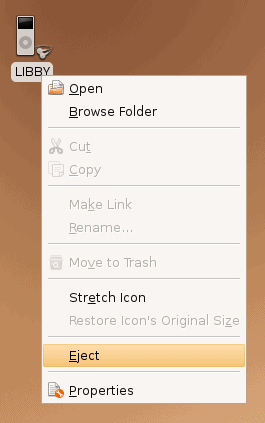
Reference: http://www.simplehelp.net/2007/07/03/how-to-manage-your-ipod-using-rhythmbox-in-ubuntu
Oct 17, 2010
Deleting Windows.old files (Vista)
1- Go to Start->All Programs>Accessories> System Tools -> Disk Cleanup
2- Then system will search for useless files.
3- Choose previous windows files and make the system erase them.
Subscribe to:
Posts (Atom)
Visual Studio Keyboard Shortcuts
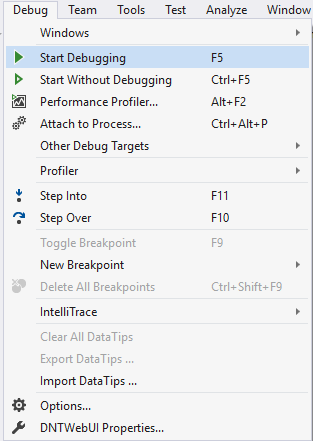
Playing with keyboard shortcuts is very interesting and reduce the headache of using the mouse again and again while programming with visu...
-
Delete: /YOUR PATH TO WORKSPACE/.metadata/.plugins/org.eclipse.core.resources
-
ERROR While installing Flash Player: the user does not have sufficient privileges to install Adobe Flash Player 1- First uninstall Flash...
-
Playing with keyboard shortcuts is very interesting and reduce the headache of using the mouse again and again while programming with visu...
