Step 1. To play a copied/ripped DVD from hard disk you can use VideoLAN (VLC Player): Click here to download this player
Step 2. Install it. Start VideoLAN (click Start -> Programs -> VideoLAN -> VLC Media Player)
Step 3. Click File -> Open Directory. Find the VIDEO_TS folder, select it and click OK.
Please note, you have to copy all the ripped data to the right place. Create a VIDEO_TS folder and copy all the ripped files there.
Other solutions:
In order to play a copied DVD with WinDVD you must right-click on the player (menu will pop up), choose Source -> DVD From Folder, find and open your VIDEO_TS folder.
To play a copied DVD with PowerDVD you click on the open button and choose Open DVD File from the Hard Disk Drive and open the video_ts.ifo.
To play VIDEO_TS using ANY PLAYER download and install MPEG2 Decoder. After that, find your VIDEO_TS folder and open VOB files (such as VTS_01_1.VOB, VTS_01_2.VOB, VTS_01_3.V0B etc.).
Let's explain what is inside VIDEO_TS:
VIDEO_TS.IFO, VTS_01_0.IFO - are configuration files with information about how to play exactly all video and audio content of DVD (including menus, subtitles, aspect ratio, languages etc.).
VIDEO_TS.BUP, VTS_01_0.BUP - backup of configuration files.
VTS_01_1.VOB, VTS_01_2.VOB, VTS_01_3.V0B, ... - files with video and audio data.
Showing posts with label DVD. Show all posts
Showing posts with label DVD. Show all posts


Subscribe to:
Posts (Atom)
Visual Studio Keyboard Shortcuts
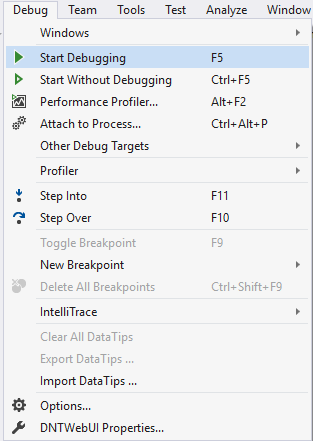
Playing with keyboard shortcuts is very interesting and reduce the headache of using the mouse again and again while programming with visu...
-
Delete: /YOUR PATH TO WORKSPACE/.metadata/.plugins/org.eclipse.core.resources
-
Unity NavMesh vs Apex Path vs A* Pathfinding Project Update June 2017: Unity 5.6 comes with improved NavMeshes! They are now component-b...
-
Playing with keyboard shortcuts is very interesting and reduce the headache of using the mouse again and again while programming with visu...

