Check this out : http://www.swiftless.com/tutorials/gmaker/gmakertuts.html
Showing posts with label OpenGL. Show all posts
Showing posts with label OpenGL. Show all posts
Dec 17, 2009


Sep 23, 2009
Oops! Matlab gives OpenGL Error !!!
In matlab, do you get error when you prompt:
If yes, you have to link your opengl libraries. Firstly, look at your libraries :
you have some libGL, libGLU libraries. Here is my results:
You can get the correct version of these libraries by setting up MATLAB to use your native Linux "libGL.so" file and the generic "libGLU.so" file that is shipped with MATLAB in the $MATLABROOT/sys/opengl/lib/glnx86 directory (where $MATLAB is the root MATLAB directory).
Consult your system documentation to identify the location of your native Linux OpenGL libraries. They are files or symbolic links called "libGL.so" and they are usually located in a directory such as /usr/lib or a similar directory. This native library may indicate Mesa software OpenGL, or may indicate a library that is specifically accelerated for your hardware. Later in this resolution, you will see how to determine which MATLAB is using.
Once you have identified these libraries, for example: /usr/lib/libGL.so and [YOUR_MATLAB_PATH]/sys/opengl/lib/glnx86/libGLU.so
you can create symbolic links in some_directory to these respective libraries using the UNIX linking utility. For example, assuming your native OpenGL Linux library "libGL.so" is located in /usr/lib and your MATLAB is installed in /usr/matlab, you would then do something such as this:
And then edit your matlab configuration file where it is in [YOUR_MATLAB_PATH]/bin/matlab
Find the line : # Determine for each platform and find the first export LD_LIBRARY_PATH , before this line , add
LD_LIBRARY_PATH=/usr/MATLAB_OpenGL:$LD_LIBRARY_PATH
And, then you can verify which OpenGL library file MATLAB is using by using the "ldd" command:
You can verify which renderer the libraries actually indicate by using the following command in MATLAB:
After you have determined what you are using for hardware, check which XVisual your MATLAB figure is using. You can use the following MATLAB commands:
ans =
0x23 (TrueColor, depth 24, RGB mask 0xff0000 0xff00 0x00ff)
Now cross-reference this number against the output of the UNIX command, glxinfo:
visual x bf lv rg d st colorbuffer ax dp st accumbuffer ms cav
id dep cl sp sz l ci b ro r g b a bf th cl r g b a ns b eat
----------------------------------------------------------------------
0x23 24 tc 0 24 0 r y . 8 8 8 8 0 0 0 0 0 0 0 0 0 None
0x24 24 tc 0 24 0 r . . 8 8 8 8 0 0 0 0 0 0 0 0 0 None
0x25 24 tc 0 24 0 r y . 8 8 8 8 0 24 8 0 0 0 0 0 0 None
0x26 24 tc 0 24 0 r . . 8 8 8 8 0 24 8 0 0 0 0 0 0 None
0x27 24 tc 0 24 0 r y . 8 8 8 8 0 0 0 16 16 16 0 0 0 Slow
0x28 24 tc 0 24 0 r . . 8 8 8 8 0 0 0 16 16 16 0 0 0 Slow
0x29 24 tc 0 24 0 r y . 8 8 8 8 0 24 8 16 16 16 0 0 0 Slow
0x2a 24 tc 0 24 0 r . . 8 8 8 8 0 24 8 16 16 16 0 0 0 Slow
0x2b 24 dc 0 24 0 r y . 8 8 8 8 0 0 0 0 0 0 0 0 0 None
0x2c 24 dc 0 24 0 r . . 8 8 8 8 0 0 0 0 0 0 0 0 0 None
0x2d 24 dc 0 24 0 r y . 8 8 8 8 0 24 8 0 0 0 0 0 0 None
0x2e 24 dc 0 24 0 r . . 8 8 8 8 0 24 8 0 0 0 0 0 0 None
0x2f 24 dc 0 24 0 r y . 8 8 8 8 0 0 0 16 16 16 0 0 0 Slow
0x30 24 dc 0 24 0 r . . 8 8 8 8 0 0 0 16 16 16 0 0 0 Slow
0x31 24 dc 0 24 0 r y . 8 8 8 8 0 24 8 16 16 16 0 0 0 Slow
0x32 24 dc 0 24 0 r . . 8 8 8 8 0 24 8 16 16 16 0 0 0 Slow
You can see that a visual id of 0x23 has a depth ("dp th") of 0. This indicates that the patches do not get rendered in the proper order. The renderer is not paying attention to their depth within the monitor.
To fix this, choose the best TrueColor visual that has a depth and that has double buffering. A TrueColor visual has a "visual cl" value of "tc", and a double buffering visual has a "d b" value of "y".
In this case visual 0x25 has TrueColor, double buffering, 24bit Zbuffer ("bfsz"), and is not "slow".
The following code shows how to set this visual to all MATLAB figures. You may wish to put this line of code in a "startup.m" file:
References:
http://onurs.wordpress.com/tag/linux/
http://www.mathworks.com/support/solutions/en/data/1-18N21/index.html?solution=1-18N21
[MATLAB] >> opengl infoIf yes, you have to link your opengl libraries. Firstly, look at your libraries :
[TERMINAL] >> cd /usr/lib
[TERMINAL] >> ls *GL*
you have some libGL, libGLU libraries. Here is my results:
libEGL.so            libGL.so              libQtOpenGL.prl
libGLcore.so.1       libGL.so.1            libQtOpenGL.so
libGLcore.so.177.82  libGL.so.177.82       libQtOpenGL.so.4
libGLESv2.so         libGLU.a              libQtOpenGL.so.4.4
libGLEW.so.1.5       libGLU.so             libQtOpenGL.so.4.4.3
libGLEW.so.1.5.0     libGLU.so.1
libGL.la             libGLU.so.1.3.070200
You can get the correct version of these libraries by setting up MATLAB to use your native Linux "libGL.so" file and the generic "libGLU.so" file that is shipped with MATLAB in the $MATLABROOT/sys/opengl/lib/glnx86 directory (where $MATLAB is the root MATLAB directory).
Consult your system documentation to identify the location of your native Linux OpenGL libraries. They are files or symbolic links called "libGL.so" and they are usually located in a directory such as /usr/lib or a similar directory. This native library may indicate Mesa software OpenGL, or may indicate a library that is specifically accelerated for your hardware. Later in this resolution, you will see how to determine which MATLAB is using.
Once you have identified these libraries, for example: /usr/lib/libGL.so and [YOUR_MATLAB_PATH]/sys/opengl/lib/glnx86/libGLU.so
you can create symbolic links in some_directory to these respective libraries using the UNIX linking utility. For example, assuming your native OpenGL Linux library "libGL.so" is located in /usr/lib and your MATLAB is installed in /usr/matlab, you would then do something such as this:
[TERMINAL] >> cd /usr/MATLAB_OpenGL
[TERMINAL] >> ln -s /usr/lib/libGL.so libGL.so
[TERMINAL] >> ln -s [YOUR_MATLAB_PATH]/sys/opengl/lib/glnx86/libGLU.so libGLU.so
And then edit your matlab configuration file where it is in [YOUR_MATLAB_PATH]/bin/matlab
[TERMINAL] >> sudo nano [YOUR_MATLAB_PATH]/bin/matlabFind the line : # Determine
LD_LIBRARY_PATH=/usr/MATLAB_OpenGL:$LD_LIBRARY_PATH
And, then you can verify which OpenGL library file MATLAB is using by using the "ldd" command:
[TERMINAL] >> ldd /usr/matlab/bin/glnx86/glren.soYou can verify which renderer the libraries actually indicate by using the following command in MATLAB:
[MATLAB] >> opengl infoAfter you have determined what you are using for hardware, check which XVisual your MATLAB figure is using. You can use the following MATLAB commands:
[MATLAB] >> hf=figure;
set(hf,'renderer','opengl');
get(hf,'xvisual')ans =
0x23 (TrueColor, depth 24, RGB mask 0xff0000 0xff00 0x00ff)
Now cross-reference this number against the output of the UNIX command, glxinfo:
[MATLAB] >> !glxinfovisual x bf lv rg d st colorbuffer ax dp st accumbuffer ms cav
id dep cl sp sz l ci b ro r g b a bf th cl r g b a ns b eat
----------------------------------------------------------------------
0x23 24 tc 0 24 0 r y . 8 8 8 8 0 0 0 0 0 0 0 0 0 None
0x24 24 tc 0 24 0 r . . 8 8 8 8 0 0 0 0 0 0 0 0 0 None
0x25 24 tc 0 24 0 r y . 8 8 8 8 0 24 8 0 0 0 0 0 0 None
0x26 24 tc 0 24 0 r . . 8 8 8 8 0 24 8 0 0 0 0 0 0 None
0x27 24 tc 0 24 0 r y . 8 8 8 8 0 0 0 16 16 16 0 0 0 Slow
0x28 24 tc 0 24 0 r . . 8 8 8 8 0 0 0 16 16 16 0 0 0 Slow
0x29 24 tc 0 24 0 r y . 8 8 8 8 0 24 8 16 16 16 0 0 0 Slow
0x2a 24 tc 0 24 0 r . . 8 8 8 8 0 24 8 16 16 16 0 0 0 Slow
0x2b 24 dc 0 24 0 r y . 8 8 8 8 0 0 0 0 0 0 0 0 0 None
0x2c 24 dc 0 24 0 r . . 8 8 8 8 0 0 0 0 0 0 0 0 0 None
0x2d 24 dc 0 24 0 r y . 8 8 8 8 0 24 8 0 0 0 0 0 0 None
0x2e 24 dc 0 24 0 r . . 8 8 8 8 0 24 8 0 0 0 0 0 0 None
0x2f 24 dc 0 24 0 r y . 8 8 8 8 0 0 0 16 16 16 0 0 0 Slow
0x30 24 dc 0 24 0 r . . 8 8 8 8 0 0 0 16 16 16 0 0 0 Slow
0x31 24 dc 0 24 0 r y . 8 8 8 8 0 24 8 16 16 16 0 0 0 Slow
0x32 24 dc 0 24 0 r . . 8 8 8 8 0 24 8 16 16 16 0 0 0 Slow
You can see that a visual id of 0x23 has a depth ("dp th") of 0. This indicates that the patches do not get rendered in the proper order. The renderer is not paying attention to their depth within the monitor.
To fix this, choose the best TrueColor visual that has a depth and that has double buffering. A TrueColor visual has a "visual cl" value of "tc", and a double buffering visual has a "d b" value of "y".
In this case visual 0x25 has TrueColor, double buffering, 24bit Zbuffer ("bfsz"), and is not "slow".
The following code shows how to set this visual to all MATLAB figures. You may wish to put this line of code in a "startup.m" file:
[MATLAB] >> set(0,'defaultfigurexvisual','0x25');References:
http://onurs.wordpress.com/tag/linux/
http://www.mathworks.com/support/solutions/en/data/1-18N21/index.html?solution=1-18N21
Aug 26, 2009
Getting OpenGL to Work With Visual C++ 2008
Follow each step, unless you have already done one of these steps.
1. Install Visual C++ 2008 Express Edition
This is a free C++ IDE from Microsoft that is an excellent tool to start with, if you are interested in programming on a Windows environment.
You can find Visual C++ 2008 on the Visual Studio Express download page on Microsoft's site. It only works on Windows XP and up. If you have an older version of windows you might want to find Visual C++ 2005 and then use this Visual C++ 2005 and OpenGL tutorial.
2. Install Windows SDK for Windows Server 2008 and .NET Framework 3.5
This is the equivalent to the Windows� Server 2003 SP1 Platform SDK that Visual C++ 2005 users installed. It contains the main OpenGL libraries. You can download the Windows SDK for Windows Server 2008 and .NET Framework from the Microsoft website.
The installation will take a little while.
3. Install the GLUT Libraries
These are additional libraries that come in handy down the road. Some code samples you find may use them, so I find it best to just have them around right off the bat.
GLUT itself is a bit old, but there is another one called freeglut that is a little more actively maintained. I install both of them. Download freeglut from the freeglut SourceForge page. I download the original GLUT from Nate Robins' site.
For both downloads, unzip them and do the following:
1. Copy all the .h files into the C:\Program Files\Microsoft SDKs\Windows\v6.1\Include\GL folder. This should be glut.h, freeglut.h, freeglut_ext.h, and freeglut_std.h.
2. Copy all the .lib files into the C:\Program Files\Microsoft SDKs\Windows\v6.1\Lib folder. This should be freeglut.lib and glut32.lib.
3. Copy all the .dll files into the C:\Windows\system32 folder. This should be freeglut.dll and glut32.dll.
4. Create Your First Project
Create a project in Visual C++ with whatever name you like and set the template as Win32 Project. Click OK.
Click Next on the following screen and you will be taken to Application Settings. Check on Empty Project and then click OK. Your new project has been created.
Declare the dependencies for your project.
1. Click on Project -> [project name] Properties.
2. Expand Configuration Properties.
3. In the Configuration dropdown, select All Configurations.
4. Select Linker -> Input.
5. In the Additional Dependencies field, enter in GlU32.Lib OpenGL32.Lib freeglut.lib glut32.lib. Then click OK.
5. Create Your First Source File
I recommend a .cpp file. I recommned downloading the source code from NeHe's Lesson 2 and copying into the file you just created.
Press F7 to compile it and F5 to run it.
It should be working at this point. If not, post a comment and I will try and help out.
Reference: http://thoughtsfrommylife.com/article-748-OpenGL_and_Visual_Studio_Express_2008
Subscribe to:
Posts (Atom)
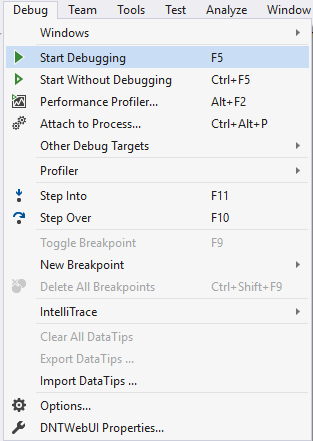
Visual Studio Keyboard Shortcuts
Playing with keyboard shortcuts is very interesting and reduce the headache of using the mouse again and again while programming with visu...
-
A quick reference for working with AGAL, the new shader language for use with Stage3D introduced with Flash Player 11. Registers: Each r...
-
 The Linux file system is the structure in which all the information on your computer is stored.Files are organized within a hierarchy of dir...
-
http://www.dgp.toronto.edu/~rms/links.html Papers Ke-Sen Huang's comprehensive and invaluable Conference Paper Link Archive Mesh Libra...